
How to Reboot Your VPS from the Client Area
Short answerIn the Client Area, open My Services → your VPS → Reboot. Wait 60–90 seconds, then test SSH/RDP. Use noVNC if remote access fails after the reboot.
Overview
Client Area power actions work at the hypervisor level — they restart the guest even when SSH or RDP is unreachable. Use reboot for stuck services, kernel updates, or an unresponsive but Active VPS.
When to reboot
After kernel updates requiring restart, stuck services, or when the VPS is unresponsive but Active in client area.
Reboot Steps
- Log in to billing.vpsgrid.net
- My Services → select VPS
- Click Reboot
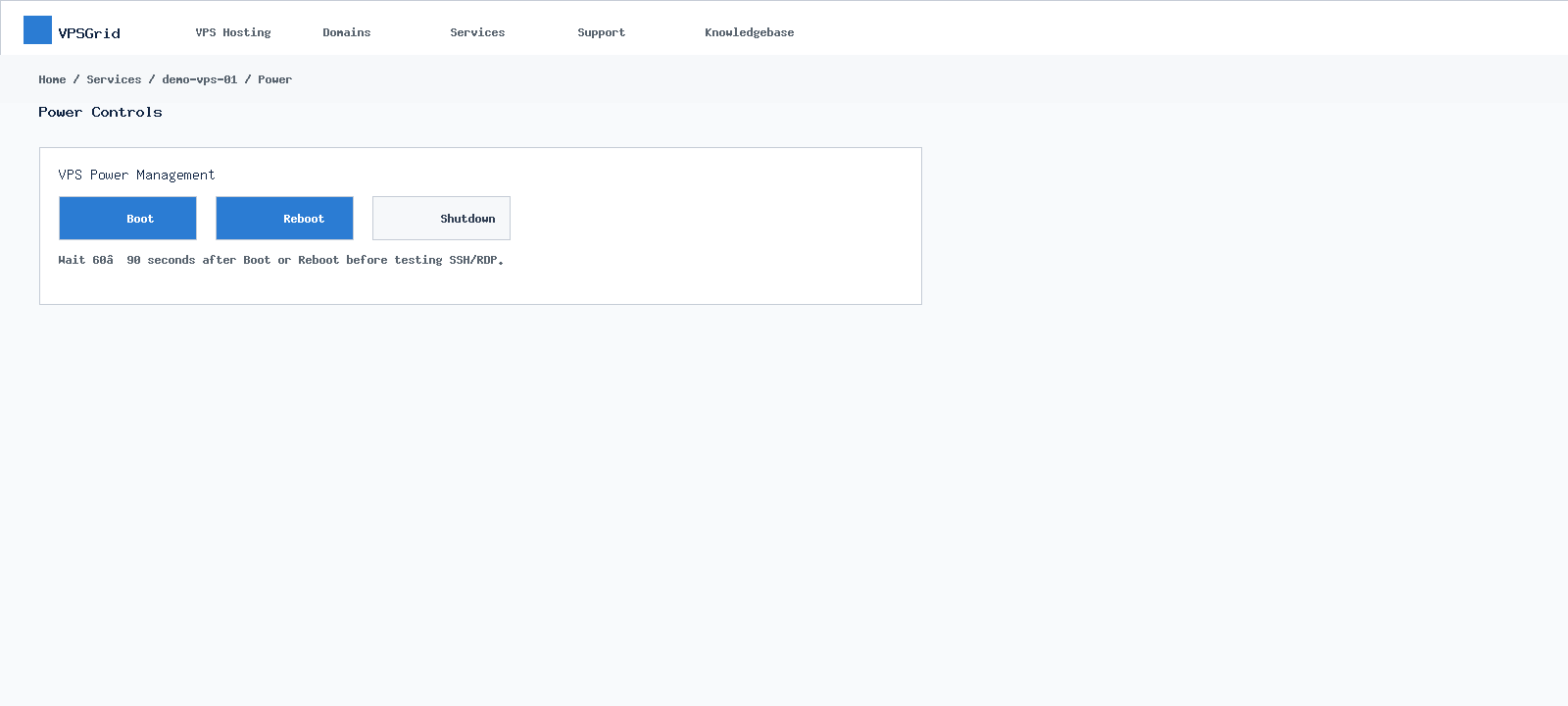 Use Boot, Reboot, or Shutdown from the service management panel.
Wait 60?90 seconds before testing SSH/RDP.
Verify via noVNC
If remote access fails after reboot, open noVNC → Using the VPSGrid NoVNC Console.
The VPSGrid client area centralizes services, billing, domains, and support. Bookmark billing.vpsgrid.net and explore Accessing the VPSGrid Client Area to locate power controls, noVNC, invoices, and tickets quickly.
Graceful vs Hard Reboot
Client area Reboot sends a reset signal to the guest. For database servers, stop services gracefully from SSH/RDP first when possible.
After Kernel Updates
Linux kernel updates often require reboot to load new kernel → How to Update Ubuntu, Debian, AlmaLinux, and Rocky Linux VPS Safely.
Power Actions Explained
Reboot restarts the guest operating system while keeping disk and network configuration intact. Shutdown stops the VM; you must click Boot to start again. These actions operate at the hypervisor level → they work even when SSH or RDP is unreachable, which makes them essential recovery tools alongside noVNC.
Never cancel a service to "turn it off" temporarily → cancellation follows billing terms at vpsgrid.net/legal and may delete data. Use Shutdown for maintenance and keep the subscription Active if you plan to return.
Service Detail Page
Each VPS product page in My Services consolidates the information you need daily: primary IP, hostname, status badge, power buttons, console launcher, OS reinstall, and upgrade paths. Bookmark the direct service URL after first login to skip navigation clicks during incidents.
When Client Area Differs From Guest OS
Active status means the hypervisor sees a running VM → not that your application responds on port 80. A misconfigured web server, exhausted disk, or guest firewall can make an Active VPS unreachable remotely. Always distinguish platform status from application health.
Application-Aware Reboots
Databases (MySQL, PostgreSQL, MSSQL) prefer graceful shutdown → flush writes before reboot. Web servers with long-lived connections should drain sessions via load balancer maintenance mode when available.
Filesystem Checks
Repeated hard reboots without clean shutdown may trigger fsck on Linux next boot → allow extra boot time via noVNC. Windows may run chkdsk after unclean shutdown.
Automation Caution
Do not script client-area reboots without human confirmation during business hours → unintended loops disrupt production.
Client area notes
- Use trusted devices for Client Area sessions — noVNC and power controls affect running workloads
- When multiple VPS products appear under My Services, match hostname and IP before rebooting
- Upgrade and reinstall emails may arrive separately — read subject lines carefully
Frequently Asked Questions
Reboot vs Shutdown?
Reboot restarts OS; Shutdown stops VM until Boot clicked → How to Shut Down and Start Your VPS.
Will reboot fix high CPU?
Temporary relief only → High CPU and RAM Usage on Your VPSGrid VPS.
Related Articles
Need More Help?
Search this knowledgebase for related guides. If the issue persists, open a ticket at billing.vpsgrid.net with your service ID, primary IP, and steps already tried. See What Information to Include in a Support Request and Security Responsibilities on Unmanaged VPS for scope and required details.
Was this answer helpful?

