
How to Connect via SSH to Your VPSGrid Linux VPS
Short answerHow to Connect via SSH to Your VPSGrid Linux VPS on an unmanaged VPSGrid VPS. Follow the steps below, then verify the result before opening a support ticket.
Overview
This guide covers the steps and checks you need on an unmanaged VPSGrid VPS. Guest OS configuration remains your responsibility unless a separate managed product is documented on your account.
- VPS Active
- Primary IP copied
- Port 22 allowed in guest firewall
- Credentials from welcome email
Find Your IP
My Services → VPS → copy Primary IP.
 Copy the primary IP for SSH, RDP, and DNS configuration.
Connect from Linux or macOS
ssh root@YOUR_PRIMARY_IPAccept host key fingerprint on first connect.
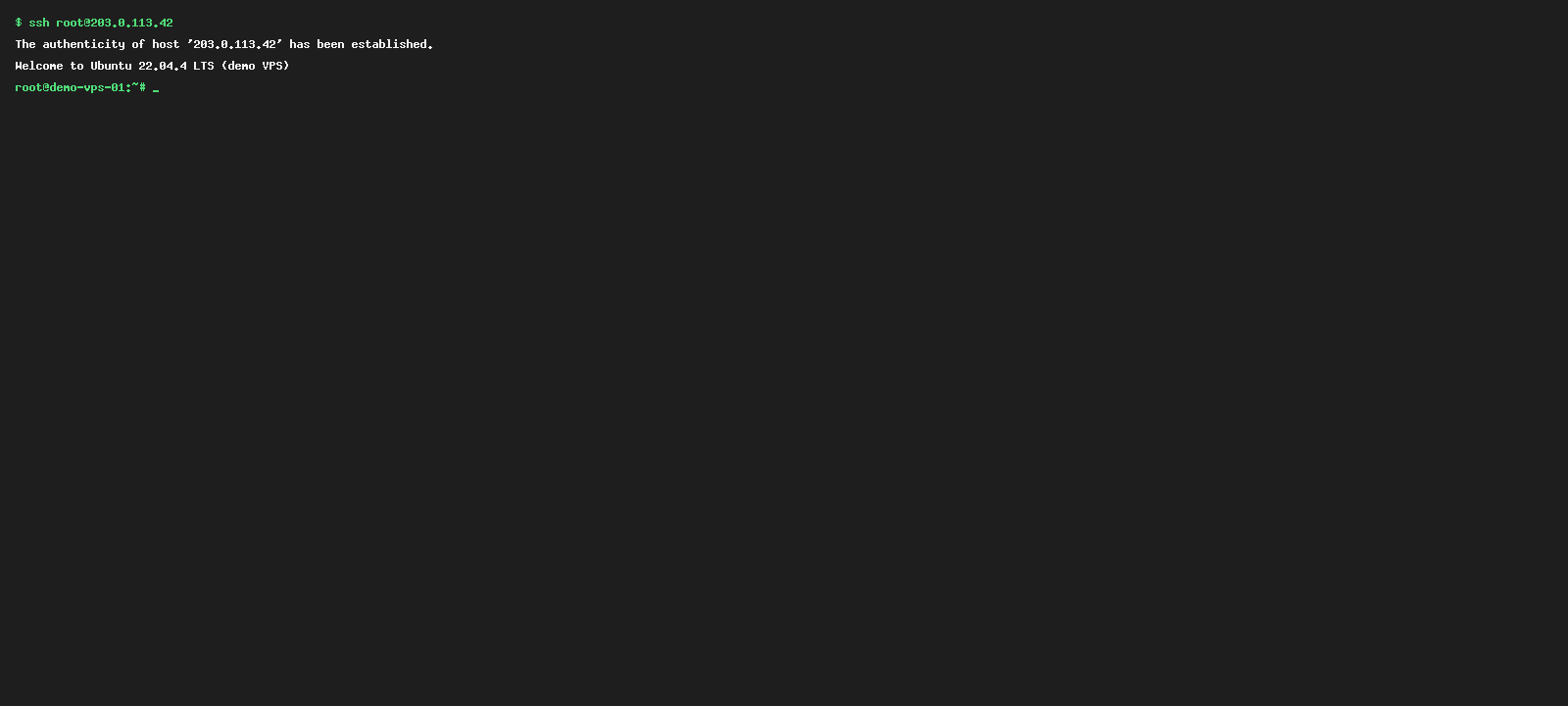 Successful SSH login shows a shell prompt after authentication.
Connect from Windows
Use Windows Terminal, PuTTY, or OpenSSH client (Windows 10+). Host: IP, Port: 22, User: root (or sudo user).
Security First Login
Change password, create sudo user, disable root password login after adding SSH keys — How to Enable SSH Key Authentication.
Troubleshooting
Connection refused: guest firewall or sshd not running — use noVNC. Timeout: wrong IP or upstream filter — verify Active status.
VPSGrid provides unmanaged VPS hosting. You manage the operating system, applications, patches, and security inside the guest VM. VPSGrid manages hypervisor infrastructure, network connectivity, power controls, and billing. See What Is an Unmanaged VPS at VPSGrid? for the full responsibility split and Security Responsibilities on Unmanaged VPS for what support can assist with.
VPSGrid operates KVM virtual private servers from a Dallas, Texas datacenter on Proxmox VE with NVMe storage. Every VPS includes browser-based noVNC console access, power controls, and billing through the WHMCS client area at billing.vpsgrid.net. Plans and pricing are shown at checkout on vpsgrid.net — we do not publish fixed prices in knowledgebase articles because promotions and tiers change.
Planning your workload
Before ordering, estimate vCPU, RAM, and storage for your stack. Web servers, databases, and control panels have different baseline requirements. Compare tiers at vpsgrid.net checkout rather than guessing from third-party benchmarks. You can upgrade resources later from My Services when sustained load exceeds your plan — see High CPU and RAM Usage on Your VPSGrid VPS if performance becomes a bottleneck.
Documentation and runbooks
Document your server hostname, primary IP, SSH key fingerprints, and restore procedures in your internal wiki. When multiple team members access the same VPS, use named sudo accounts on Linux and avoid sharing the root password. For Windows, create separate Administrator-capable accounts only when required and audit RDP access logs periodically.
Harden your VPS on day one: apply OS updates, configure a guest firewall, use SSH keys on Linux, and restrict RDP exposure on Windows. Review How to Secure Your Linux VPS After First Login and Windows Firewall Basics for VPSGrid Windows VPS before loading production data.
SSH Config File
Add to ~/.ssh/config: Host myvps / HostName YOUR_IP / User root / IdentityFile ~/.ssh/id_ed25519 then connect with ssh myvps.
Non-Root Users
Create sudo user: adduser deploy && usermod -aG sudo deploy (Debian/Ubuntu) before disabling root login.
Port Changes
If you change SSH port, update guest firewall and document the port in your runbook.
Additional Best Practices
Maintain change logs for production VPS instances. Test disaster recovery quarterly. Keep VPSGrid client area contact email aligned with your operations team distribution list.
Why SSH Is the Primary Admin Path
SSH provides encrypted command-line access suitable for automation, file transfer (scp/sftp), and tunneling. Compared to noVNC, SSH uses less bandwidth and supports scripted deployments. Compared to control panels, SSH avoids licensing overhead for experienced administrators managing LAMP, LEMP, or Docker stacks.
Distribution Notes
Ubuntu and Debian use apt packaging — large package indexes and extensive community tutorials. AlmaLinux and Rocky Linux target RHEL compatibility with dnf/yum — ideal when vendor software certifies against Enterprise Linux. Pick the template matching your deployment scripts; migrating distributions later usually requires reinstall or manual conversion.
Time Sync and Logs
Configure NTP (systemd-timesyncd or chrony) so log timestamps align with your local timezone investigations. Centralize logs off-server when running production — unmanaged VPS plans do not include long-term log retention.
Deep Dive: Operational Excellence
Production VPS workloads benefit from runbooks documenting bootstrap steps, rollback procedures, and escalation contacts. Schedule quarterly tests of backups and restore paths — unmanaged hosting places backup responsibility on you. Monitor certificate expiry, disk growth, and renewal dates independently of VPSGrid billing reminders when managing client projects.
Align internal SLAs with VPSGrid legal terms — we provide infrastructure, not application uptime guarantees. Combine synthetic monitoring (UptimeRobot, Pingdom, self-hosted) with log review for sustainable operations.
Client Tooling
Windows Terminal and PuTTY are common Windows clients. macOS and Linux include OpenSSH client by default. Mobile SSH clients exist for emergency restarts but are awkward for extended administration.
Jump Hosts and Bastions
Some teams route SSH through a bastion — configure ProxyJump in SSH config when required by internal policy. VPSGrid does not provide managed bastion hosts on standard plans.
File Transfer
Use scp or rsync over SSH for deployments. SFTP-compatible GUI clients (FileZilla, WinSCP) work when SFTP subsystem is enabled in sshd.
Brute Force Exposure
Public SSH on port 22 attracts automated login attempts — combine keys, fail2ban, and firewall allowlists where feasible.
Extended Guidance
Flagship onboarding topics warrant periodic review — revisit this article when VPSGrid updates client area UI or when you onboard new administrators. Cross-train team members on noVNC and billing access so incidents are not blocked on a single individual's credentials.
Combine this guide with Batch 1 troubleshooting articles for holistic coverage: connectivity, performance, DNS, and email policy articles interlink from the knowledgebase hub.
SSH connection notes
- Linux administration on VPSGrid assumes comfort with shell, package managers, and log files — control panels are optional third-party add-ons you install and license
- Schedule cron jobs in UTC or explicitly set
/etc/localtimeto avoid daylight-saving surprises for batch jobs - Combine SSH key auth with firewall allowlists if your office has static egress IP addresses
Frequently Asked Questions
Default SSH port?
Port 22 unless you changed sshd_config.
Root login allowed?
Default templates often allow root — harden immediately.
Connection timed out
IPv6?
Use primary IPv4 unless your plan displays IPv6 — confirm in My Services.
Related Articles
Need More Help?
Search this knowledgebase for related guides. If the issue persists, open a ticket at billing.vpsgrid.net with your service ID, primary IP, and steps already tried. See What Information to Include in a Support Request and Security Responsibilities on Unmanaged VPS for scope and required details.
Was this answer helpful?

