
How to Pay an Invoice
Short answerLog in at billing.vpsgrid.net, go to Billing → My Invoices, open an unpaid invoice, click Pay Now, choose or add a payment method, and submit. You receive an email receipt when payment succeeds; status changes to Paid in the client area.
Overview
This guide covers the steps and checks you need on an unmanaged VPSGrid VPS. Guest OS configuration remains your responsibility unless a separate managed product is documented on your account.
Before You Start
VPSGrid bills on a prepaid basis through the WHMCS client area at billing.vpsgrid.net. Invoices are generated automatically before renewal dates for VPS services, domains, and add-ons. Accepted payment methods are shown at checkout and on the invoice payment screen — see your invoice for current options.
If your VPS was suspended for non-payment, paying the overdue invoice typically restores service after payment confirmation (usually within minutes). For access issues after payment, see VPS Is Running but Website Is Down.
Find Your Invoices
- Log in to billing.vpsgrid.net
 Log in with your account email and password. Use Forgot Password if needed.
- Click Billing in the top navigation
- Select My Invoices
 Open Billing → My Invoices to find unpaid invoices.
- Use status filters: Unpaid, Paid, or Cancelled
Each row shows the invoice number, date, due date, and balance. Click an invoice number to open details
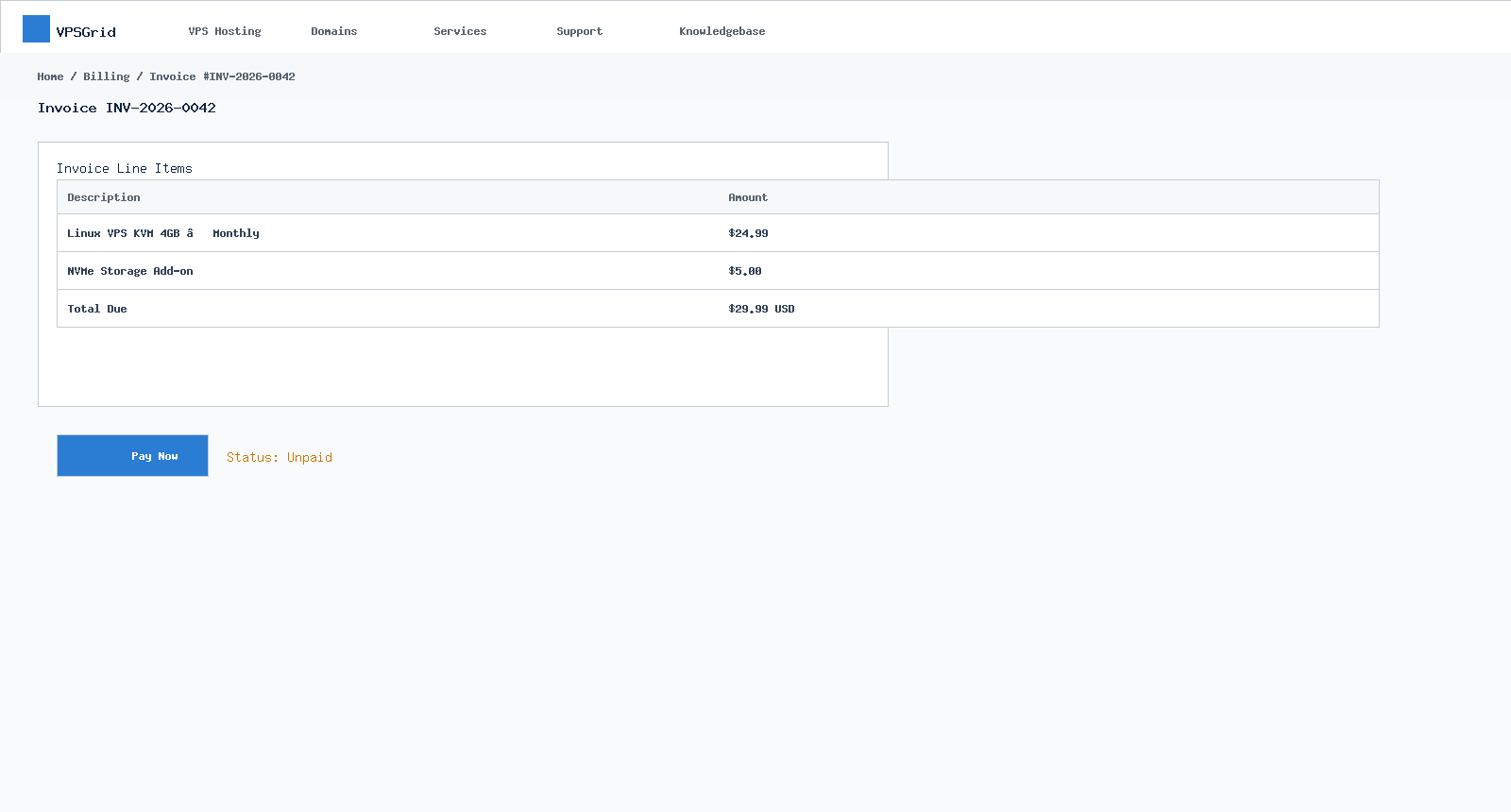 Review line items, then click Pay Now to continue payment.
. Bookmark the client area login page for quick access before renewal due dates.
Review line items, then click Pay Now to continue payment.
. Bookmark the client area login page for quick access before renewal due dates.
Pay an Unpaid Invoice
- Open the unpaid invoice from My Invoices
- Review line items — VPS renewal, domain renewal, upgrades, or prorated changes
- Click Pay Now
 Click Pay Now to open the payment method selector.
- Select a saved payment method or add a new one
 Choose a saved card or add a new payment method.
- Confirm billing address if prompted
- Submit payment and wait for the confirmation page
You will receive an email receipt when payment succeeds. The invoice status changes to Paid in your client area. Allow up to 15 minutes for gateway confirmation before contacting support.
Update Payment Methods
To avoid renewal failures, keep a valid card or PayPal method on file:
- Go to Billing → Payment Methods
- Add a new method or set a default
- Remove expired cards to prevent confusion at auto-renew time
Step-by-step: How to Update Your Payment Method. VPSGrid does not store full card numbers on our servers — payment processing is handled by PCI-compliant gateway partners.
Understanding Invoice Timing
Monthly VPS plans renew on your billing anniversary date. Annual plans renew once per year. Domain renewals follow the domain's expiration date — How to Transfer a Domain to VPSGrid. Upgrade invoices may be generated immediately when you change resources mid-cycle.
Billing overview: How VPSGrid Billing Works. Plan pricing is shown at checkout — we do not publish fixed prices in knowledge base articles because plans and promotions change.
First-Time VPS Money-Back Guarantee
Eligible first-time VPS customers may request a refund within 72 hours of the authoritative payment timestamp for qualifying VPS products. Domain registrations, SSL, licenses, and add-ons are excluded. After 72 hours, standard cancellation terms apply. See What Unmanaged VPS Hosting Means for service scope and vpsgrid.net/legal for full terms.
Monthly Cancellation Note
VPSGrid does not offer prorated refunds for monthly VPS plans cancelled mid-cycle. Paying a renewal invoice extends service through the end of that billing period. If you intend to cancel, do so before the next invoice generates to avoid paying for another full month you will not use.
Frequently Asked Questions
My payment failed — what should I do?
Verify your card has sufficient funds, billing ZIP matches the bank record, and 3-D Secure (if prompted) completed. Try an alternate method or contact your bank. See Why Your Payment Failed. If the error persists, open a billing ticket with the exact error message
 If payment fails, note the exact error text for your support ticket.
.
If payment fails, note the exact error text for your support ticket.
.
I paid but my invoice still shows Unpaid
Allow up to 15 minutes for gateway confirmation. Refresh the page. If still unpaid after 30 minutes, open a ticket with your payment confirmation email and invoice number.
Can I pay partially?
Invoices must be paid in full unless support applies a credit. Contact billing for account credit questions.
Where do I download a PDF receipt?
Open the paid invoice and use the PDF or print option if available in your client area template.
Will paying restore my suspended VPS immediately?
Usually within minutes after payment posts. Reboot from My Services if the service shows Active but remains unreachable.
Are domain renewals included in the 72-hour VPS refund?
No. Domain registrations and renewals are excluded from the first-time VPS money-back guarantee.
Related Articles
Need More Help?
For billing disputes, double charges, or refund requests within the 72-hour VPS window, contact VPSGrid billing support.
Before opening a ticket, include:
- Invoice number
- Payment date and time (with timezone)
- VPS service ID
- Screenshots of payment errors or bank charges
- Steps already attempted
Open a support ticket at billing.vpsgrid.net. For legal and policy terms, see vpsgrid.net/legal.
¿Le ha resultado útil esta respuesta?

