
How to Contact VPSGrid Support
Short answerSearch this knowledge base first, then open a ticket at billing.vpsgrid.net → Support → Open Ticket. Choose the right department (Billing, Technical, Sales), include your service ID, primary IP, and steps already tried — see What Information to Include in a Support Request.
Overview
VPSGrid support assists with platform, billing, and provisioning issues on unmanaged VPS plans. Guest OS administration (web stacks, databases, app code) is your responsibility unless a product explicitly includes management — Security Responsibilities on Unmanaged VPS.
Before opening a ticket
Search this knowledgebase and try relevant guides — many issues resolve without waiting for support.
Open a Ticket
- Log in to billing.vpsgrid.net
- Support → Open Ticket
- Select department (Billing, Technical, Sales)
- Enter subject and detailed message
- Attach screenshots if helpful
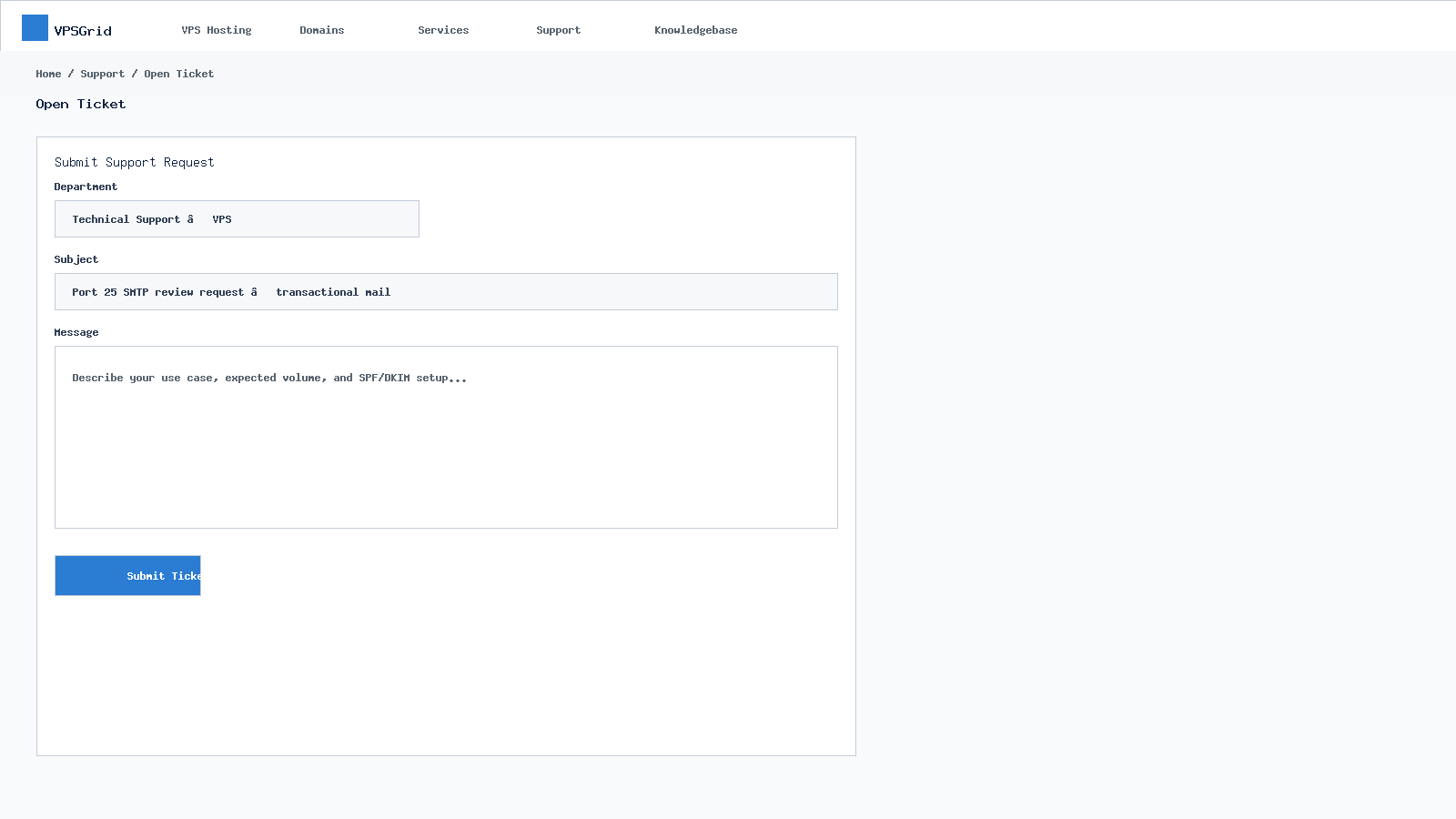 Select a department and describe your issue in detail.
Track Replies
Support → View Tickets — reply in thread for updates.
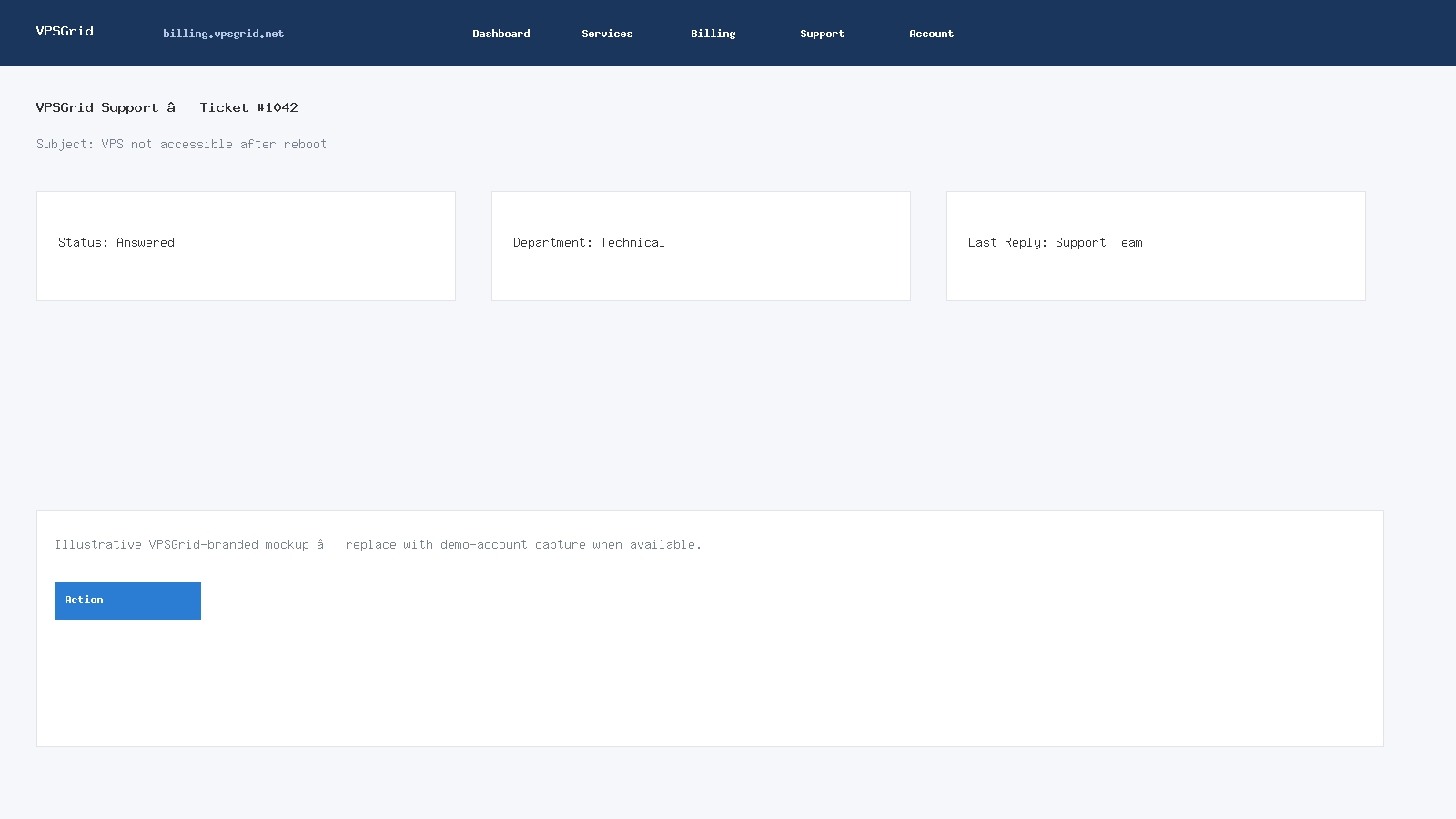 Track replies and add updates from the ticket thread.
When self-service steps do not resolve the issue, open a support ticket at billing.vpsgrid.net with your service ID, primary IP, steps already tried, and exact error messages. Read What Information to Include in a Support Request before submitting.
Ticket Departments
Billing: invoices, refunds per policy. Technical: VPS access, provisioning. Sales: plan questions before ordering.
Attachments
Attach screenshots of errors — redact API keys and passwords.
Self-Service First
VPSGrid publishes knowledgebase articles for provisioning, access, billing, and common troubleshooting. Searching before opening a ticket often resolves issues in minutes — especially connectivity problems covered by noVNC and firewall guides.
Ticket Quality Impacts Resolution Time
Incomplete tickets ("server down") require back-and-forth for IP, service ID, and reproduction steps. Include everything listed in our ticket checklist the first time. Attach screenshots with passwords and API keys redacted.
Abuse and Compliance
Report compromised VPS promptly. Outbound email must follow port 25 policy. Content violating the Acceptable Use Policy at vpsgrid.net/legal may result in suspension after review regardless of plan tier.
Ticket Lifecycle
Tickets start Open, move to Answered when staff reply, and Customer-Reply when you respond. Close resolved tickets to keep queue manageable — reopen if issue recurs with reference to original ticket ID.
Priority and Tone
Clear factual descriptions outperform urgent language without details. State business impact and user count when requesting expedited review.
Ticket best practices
- Continue existing ticket threads instead of opening duplicates for the same issue
- Support cannot access application databases or source code — provide sanitized logs/screenshots
- For billing disputes, include invoice numbers and payment timestamps from Billing → My Invoices
Frequently Asked Questions
Response time?
Varies by queue and plan; include severity and business impact in ticket.
Live chat?
Available from website if enabled — tickets provide audit trail.
Related Articles
Need More Help?
Search this knowledgebase for related guides. If the issue persists, open a ticket at billing.vpsgrid.net with your service ID, primary IP, and steps already tried. See What Information to Include in a Support Request and Security Responsibilities on Unmanaged VPS for scope and required details.
¿Le ha resultado útil esta respuesta?

