
How to Point a Domain to Your VPS IP
Short answerCopy your VPS primary IP, create DNS A records for @ and usually www (or delegate nameservers), wait for propagation, then configure your web server/firewall. DNS alone does not deploy a website.
Overview
Detailed end-to-end workflow (DNS + web server binding): How to Point a Domain to a VPS. Propagation timing: How DNS Propagation Works.
To serve a website/s or application on your VPSGrid KVM VPS, DNS must resolve your domain name to your server's public IPv4 address. VPSGrid domains are managed at billing.vpsgrid.net. External domains can point to VPSGrid DNS or use your registrar's DNS panel.
DNS changes do not configure your web server — they only tell browsers where to connect. After DNS propagates, ensure Nginx or Apache listens on ports 80/443 inside the guest OS. If the site still fails, see VPS Not Accessible — Troubleshooting Guide.
Find Your VPS IP Address
- Log in to the client area
- Go to Services → My Services
- Click your VPS — note the Primary IP
 Copy the Primary IP — you need it for DNS A records and SSH/RDP connections.
Use this IP for A records unless you have additional routed IPs. Reinstalling the OS does not change IP unless you order a new service.
Nameservers vs DNS Records — Explained
Nameservers (NS delegation) determine which DNS provider is authoritative for your domain. When you set nameservers at your registrar to VPSGrid (or Cloudflare, etc.), that provider's zone editor controls all records.
DNS records (A, AAAA, CNAME, MX, TXT) are individual answers inside a zone — e.g., "example.com points to 203.0.113.10."
You either edit records where nameservers point, or change nameservers to move control. Mixing both without understanding delegation causes "I updated DNS but nothing changed" tickets.
Option A — Edit A Records at Current DNS Host
Keep existing nameservers; add or update A records only:
Apex (root domain)
example.com. IN A 203.0.113.10www subdomain
www.example.com. IN A 203.0.113.10Or use CNAME: www.example.com. IN CNAME example.com. — ensure your web server has vhosts for both hostnames.
Other subdomains
app.example.com.    IN    A    203.0.113.10
api.example.com.    IN    A    203.0.113.10
staging.example.com. IN   A    203.0.113.55
At VPSGrid for domains registered here: Domains → My Domains → Manage → DNS Zone Editor
 Add or edit A records pointing to your VPS primary IP.
.
Add or edit A records pointing to your VPS primary IP.
.
Option B — Delegate Nameservers to VPSGrid
If VPSGrid hosts your DNS zone, nameservers are listed under Domains → Manage → Nameservers
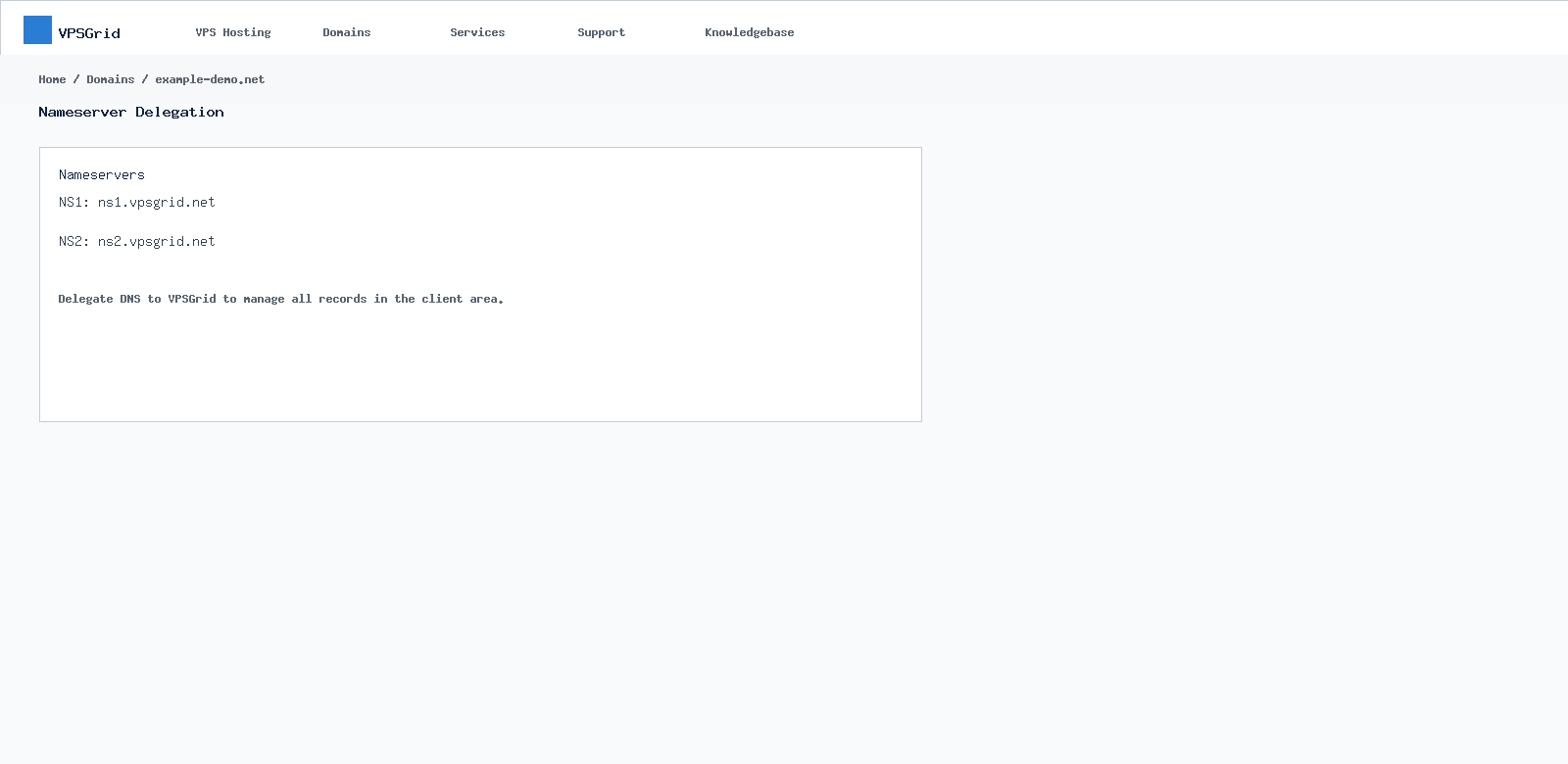 View or update nameservers when delegating DNS to VPSGrid.
. Update nameservers at the registrar to delegate DNS entirely to VPSGrid. Then edit A records in the VPSGrid zone editor.
View or update nameservers when delegating DNS to VPSGrid.
. Update nameservers at the registrar to delegate DNS entirely to VPSGrid. Then edit A records in the VPSGrid zone editor.
Delegation can take longer than single-record edits — allow up to 48 hours when moving from external DNS. Lower TTL at the old host before migration if possible (300 seconds).
Option C — External Registrar DNS Panel
If the domain stays at another registrar, log in there and set the same A records to your VPSGrid VPS IP. No nameserver change required unless you want VPSGrid to host the zone.
Configure Your Web Server
After DNS points to your IP, configure the application stack on the Dallas NVMe VPS:
# Linux example — allow web ports
ufw allow 80/tcp
ufw allow 443/tcp
Point Nginx server_name or Apache ServerName to your domain. Mail (MX) is separate — website A records do not configure email. Outbound SMTP from the VPS is subject to VPSGrid Port 25 Outbound SMTP Policy.
DNS Propagation Timeline
| Change type | Typical propagation | Notes |
|---|---|---|
| Single A record edit (same NS) | 5 minutes – 4 hours | Depends on prior TTL |
| Lower TTL before change | Wait old TTL to expire | Set TTL=300 first for faster cutover |
| Nameserver delegation change | 4 – 48 hours | Registries and resolvers cache NS |
| Global full consistency | Up to 48 hours | Test from multiple resolvers |
Verify with dig and nslookup
# Linux/macOS — check apex A record
dig +short example.com A

# Check www
dig +short www.example.com A

# Which nameservers are authoritative?
dig +short NS example.com

# Windows cmd
nslookup example.com
nslookup www.example.com
Both apex and www should return your VPS IP when propagation completes. Compare against the IP in
Copy the Primary IP — you need it for DNS A records and SSH/RDP connections.
.
SSL / HTTPS
After A records resolve, use Let's Encrypt (Certbot) or upload certificates. HTTP-01 validation requires port 80 reachable from the internet.
Troubleshooting
- dig shows old IP — TTL not expired or wrong zone edited. Confirm authoritative NS with
dig NS. - DNS correct but site down — web server not listening, firewall blocks 80/443, or wrong vhost. Not a DNS issue.
- Partial propagation — normal during NS changes. Test with
dig @8.8.8.8vsdig @1.1.1.1. - Domain expired — renew via Domain Transfer and Renewal at VPSGrid; DNS stops when domain expires.
- Records not saving in client area — confirm domain Active and you edit the VPSGrid-hosted zone, not external NS.
CNAME vs A Record — When to Use Each
A records map a name directly to an IPv4 address — required for apex domains (example.com) because CNAME at apex conflicts with other record types at many providers. CNAME records alias one name to another hostname — common for www pointing to apex or for CDN endpoints like www.example.com CNAME example.com. If using a CDN, follow the CDN provider's prescribed record type (often CNAME to their edge hostname). Your VPSGrid VPS IP is the target when traffic should hit your Dallas KVM server directly without CDN.
Multiple Sites on One VPS
One public IP can host many domains. Create separate A records (or CNAMEs) for each domain pointing to the same IP, then configure Nginx server_name blocks or Apache virtual hosts per domain. Subdomains like blog.example.com and shop.example.net can coexist on one NVMe VPS if resources allow — monitor CPU/RAM via High CPU and RAM Usage on Your VPSGrid VPS when traffic grows.
Reverse DNS (PTR) Note
Website A records control forward DNS (name → IP). Reverse DNS (IP → name) is separate and used mainly for outbound mail reputation. Pointing your domain to a VPS for HTTP does not automatically configure PTR. Mail sending from the VPS may require PTR alignment — see VPSGrid Port 25 Outbound SMTP Policy if you plan SMTP from the server IP.
Testing From Your Workstation
Browsers cache DNS inconsistently. Prefer command-line checks during cutover. Flush local DNS cache if needed (Windows: ipconfig /flushdns, macOS: sudo dscacheutil -flushcache). Compare results from mobile data vs office Wi-Fi to detect local resolver caching during propagation.
Cutover Checklist
- Lower TTL 24 hours before change if possible
- Verify web server responds on VPS IP via curl before DNS switch
- Apply A/NS changes in authoritative zone
Add or edit A records pointing to your VPS primary IP.
- Monitor dig output every 15 minutes during migration
- Issue SSL certificate after HTTP resolves correctly
- Keep old hosting online until TTL expires to avoid downtime
Frequently Asked Questions
Can I point a subdomain only?
Yes — create app.example.com A YOUR_VPS_IP without changing apex records.
IPv6?
Add AAAA records only if your VPS has IPv6 assigned in the client area.
Domain on VPSGrid, site on VPS — same account?
Yes — common setup. Domain billing and VPS billing share billing.vpsgrid.net.
How long until my site works after A record change?
Often under an hour for record-only edits with low TTL. NS changes take longer.
Can multiple domains share one VPS IP?
Yes — configure separate virtual hosts for each hostname on the same KVM server.
Do I need to open a ticket to point DNS?
No — DNS is self-service in the client area for VPSGrid-hosted zones.
Will pointing DNS affect email?
Only if you change MX records or apex records used for mail. Website A records alone do not move email.
Related Articles
Need More Help?
Open a ticket if DNS in the client area will not save, or VPS IP changed unexpectedly after reinstall.
Before opening a ticket, include:
- Domain name
- Expected IP from My Services
- Output of dig +short domain A
- Output of dig +short NS domain
- Screenshot of zone editor
Open a support ticket at billing.vpsgrid.net. For legal and policy terms, see vpsgrid.net/legal.
Was this answer helpful?

