
Accessing Your New VPS for the First Time
Short answerConfirm Active in Client Area, copy primary IP, SSH or RDP with welcome credentials, use noVNC if network fails, then patch OS and configure firewall on day one.
Overview
Provisioning delivers IP and credentials — your job starts at first login. Harden the guest OS before loading production data.
- Confirm Active in My Services
- Copy primary IP from service page
- Linux:
ssh root@YOUR_IP— Windows: RDP to IP (BYOL license) - If SSH/RDP fails → noVNC from Client Area
- Change welcome password immediately
- Apply OS updates and configure guest firewall
Confirm service is active
My Services → your VPS → status must show Active. Suspended services need billing resolution first.
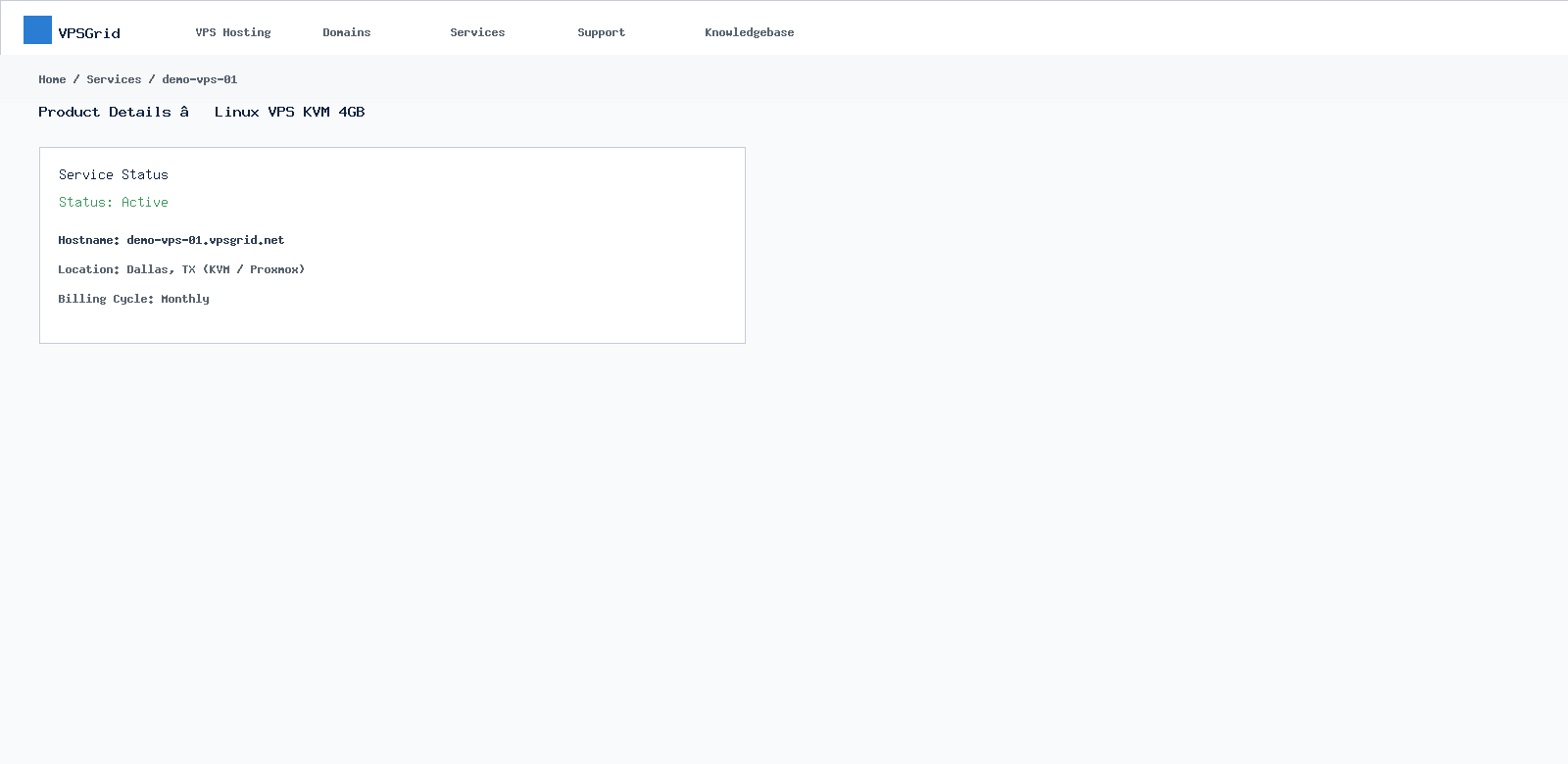 Confirm Active status before troubleshooting access.
Linux first login
ssh root@YOUR_PRIMARY_IPAccept host key on first connect. Full guide: How to Connect via SSH to Your VPSGrid Linux VPS.
Windows first login
Remote Desktop → VPS IP → Administrator + welcome password. BYOL Windows licensing required — Getting Started with a Windows VPS.
noVNC fallback
If network login fails, open Console/noVNC — NoVNC guide.
Day-one hardening
- OS updates (
apt update && apt upgradeordnf update) - Guest firewall — UFW or Windows Firewall
- SSH keys before disabling passwords — SSH keys
- Security checklist — Linux hardening
Host keys after reinstall
OS reinstall changes SSH host keys. Remove old entries from ~/.ssh/known_hosts before reconnecting.
Verify
- SSH or RDP login succeeds with new/changed password
- OS updates applied
- Firewall allows only required ports
Frequently Asked Questions
Connection timed out?
Check guest firewall, confirm IP, try noVNC. See VPS Not Accessible.
Welcome email missing?
Check spam; credentials also appear in Client Area service details after Active status.
Related Articles
Need More Help?
Search this knowledgebase for related guides. If the issue persists, open a ticket at billing.vpsgrid.net with your service ID, primary IP, and steps already tried. See What Information to Include in a Support Request and Security Responsibilities on Unmanaged VPS for scope and required details.
Was this answer helpful?

