
How to Use the NoVNC Console
Short answerOpen My Services → your VPS → Console / noVNC, allow pop-ups if needed, then log in with your guest OS credentials. Use noVNC when SSH/RDP fails, to change passwords, or to recover from firewall lockouts.
Overview
noVNC connects your browser to the KVM virtual machine console — the same view as a physical monitor on a server. It bypasses SSH/RDP network requirements and works even when guest firewalls or services block remote access.
What is noVNC?
noVNC connects your browser to the KVM virtual machine console → the same view as a physical monitor on a server. It bypasses SSH/RDP network requirements.
Open noVNC
- billing.vpsgrid.net → My Services → your VPS
- Locate Console or noVNC button
- Allow pop-up if browser blocks new window
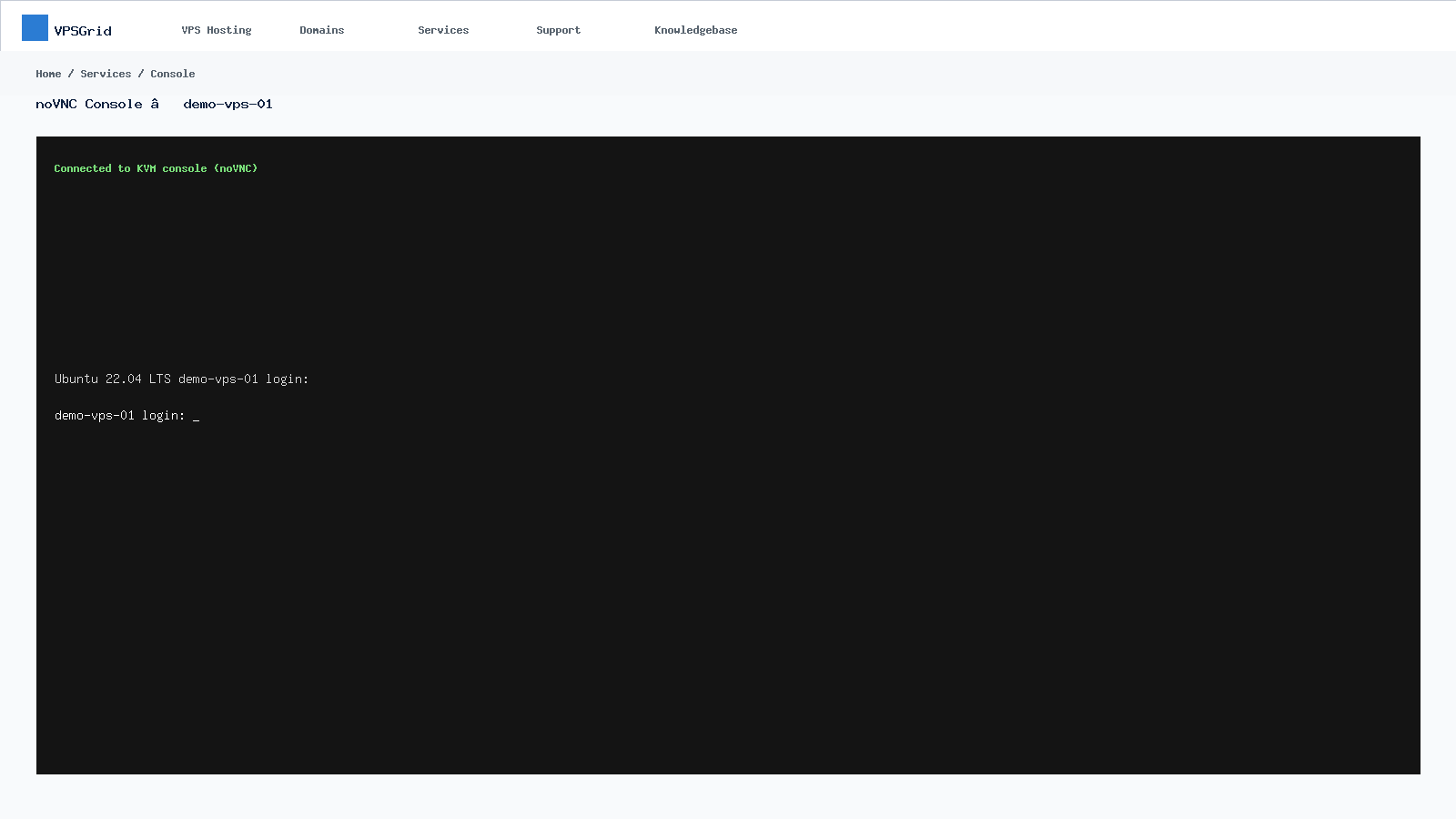 noVNC provides direct KVM console access from your browser.
Common Uses
- Verify OS booted after reboot
- Fix guest firewall blocking SSH/RDP
- Reset forgotten root/Administrator password
- Read boot errors when VM will not start networking
Limitations
noVNC is not a replacement for daily administration → use SSH or RDP for performance and copy/paste workflows.
Troubleshooting noVNC
If console is black, reboot from power controls and wait 90 seconds. If VM Suspended, pay invoices first. See VPS Not Accessible → Troubleshooting Guide.
VPSGrid operates KVM virtual private servers from a Dallas, Texas datacenter on Proxmox VE with NVMe storage. Every VPS includes browser-based noVNC console access, power controls, and billing through the WHMCS client area at billing.vpsgrid.net. Plans and pricing are shown at checkout on vpsgrid.net → we do not publish fixed prices in knowledgebase articles because promotions and tiers change.
VPSGrid provides unmanaged VPS hosting. You manage the operating system, applications, patches, and security inside the guest VM. VPSGrid manages hypervisor infrastructure, network connectivity, power controls, and billing. See What Is an Unmanaged VPS at VPSGrid? for the full responsibility split and Security Responsibilities on Unmanaged VPS for what support can assist with.
Planning your workload
Before ordering, estimate vCPU, RAM, and storage for your stack. Web servers, databases, and control panels have different baseline requirements. Compare tiers at vpsgrid.net checkout rather than guessing from third-party benchmarks. You can upgrade resources later from My Services when sustained load exceeds your plan → see High CPU and RAM Usage on Your VPSGrid VPS if performance becomes a bottleneck.
Monitoring and alerts
VPSGrid does not monitor guest OS metrics by default on unmanaged plans. Configure your own uptime checks (HTTP, TCP, or ping) against the primary IP. Watch disk usage → a full root partition can freeze Linux and block SSH. Use df -h or Task Manager regularly during the first week after deployment.
When self-service steps do not resolve the issue, open a support ticket at billing.vpsgrid.net with your service ID, primary IP, steps already tried, and exact error messages. Read What Information to Include in a Support Request before submitting.
Browser Compatibility
Use current Chrome, Firefox, or Edge. Disable aggressive pop-up blockers for billing.vpsgrid.net.
Keyboard Layout
Verify keyboard locale in guest OS if special characters fail in noVNC session.
Recovery Scenarios
Common noVNC recovery: disable ufw blocking SSH, reset sshd_config, fix Windows firewall blocking RDP → then return to normal remote access.
Additional Best Practices
Maintain change logs for production VPS instances. Test disaster recovery quarterly. Keep VPSGrid client area contact email aligned with your operations team distribution list.
Power Actions Explained
Reboot restarts the guest operating system while keeping disk and network configuration intact. Shutdown stops the VM; you must click Boot to start again. These actions operate at the hypervisor level → they work even when SSH or RDP is unreachable, which makes them essential recovery tools alongside noVNC.
Never cancel a service to "turn it off" temporarily → cancellation follows billing terms at vpsgrid.net/legal and may delete data. Use Shutdown for maintenance and keep the subscription Active if you plan to return.
Service Detail Page
Each VPS product page in My Services consolidates the information you need daily: primary IP, hostname, status badge, power buttons, console launcher, OS reinstall, and upgrade paths. Bookmark the direct service URL after first login to skip navigation clicks during incidents.
When Client Area Differs From Guest OS
Active status means the hypervisor sees a running VM → not that your application responds on port 80. A misconfigured web server, exhausted disk, or guest firewall can make an Active VPS unreachable remotely. Always distinguish platform status from application health.
Deep Dive: Operational Excellence
Production VPS workloads benefit from runbooks documenting bootstrap steps, rollback procedures, and escalation contacts. Schedule quarterly tests of backups and restore paths → unmanaged hosting places backup responsibility on you. Monitor certificate expiry, disk growth, and renewal dates independently of VPSGrid billing reminders when managing client projects.
Align internal SLAs with VPSGrid legal terms → we provide infrastructure, not application uptime guarantees. Combine synthetic monitoring (UptimeRobot, Pingdom, self-hosted) with log review for sustainable operations.
Session Management
Close noVNC tabs when finished → idle sessions consume browser memory. Multiple simultaneous console connections to one VPS may behave unpredictably; use one operator at a time during recovery.
Copy and Paste Limitations
For bulk configuration, switch to SSH after fixing network access. noVNC excels at boot diagnostics, single-command recovery, and visual confirmation of login screens.
Security Considerations
noVNC displays the same login screen as physical access → anyone with your client area credentials can open console. Protect billing.vpsgrid.net credentials accordingly.
Integration With Support
When opening tickets for boot failures, note whether noVNC shows kernel panic, login prompt, or black screen → each implies different root causes.
Extended Guidance
Flagship onboarding topics warrant periodic review → revisit this article when VPSGrid updates client area UI or when you onboard new administrators. Cross-train team members on noVNC and billing access so incidents are not blocked on a single individual's credentials.
Combine this guide with Batch 1 troubleshooting articles for holistic coverage: connectivity, performance, DNS, and email policy articles interlink from the knowledgebase hub.
Client area notes
- Use trusted devices for Client Area sessions — noVNC and power controls affect running workloads
- When multiple VPS products appear under My Services, match hostname and IP before acting
- Upgrade and reinstall emails may arrive separately — read subject lines carefully
Frequently Asked Questions
Does noVNC require Java?
No → modern noVNC uses HTML5 in supported browsers.
Can I paste commands?
Clipboard behavior varies by browser; SSH is preferred for bulk commands.
Is noVNC encrypted?
Console traffic is tunneled through VPSGrid client area HTTPS session.
Password reset via noVNC?
Yes for in-guest recovery → also see How to Reset Your VPS Password.
Related Articles
Need More Help?
Search this knowledgebase for related guides. If the issue persists, open a ticket at billing.vpsgrid.net with your service ID, primary IP, and steps already tried. See What Information to Include in a Support Request and Security Responsibilities on Unmanaged VPS for scope and required details.
Was this answer helpful?

